
1. Introduction
1.1 Introduction
One of the cool features in Silverlight 3 is the Multi-touch capabilities. This feature allows Silverlight developers to create fun and interactive applications that can be used with standard inputs, such as mouse and keyboard, as well as with touch-enabled devices.
If you have seen Minority Report, you are already aware of the gesture-based technology. The user can interact with the device to drag objects around, flick to navigate, and pinch to adjust the size of an object. These concepts have become a standard feature on a variety of devices, including Microsoft Surface, Windows 7, and mobile phones.
Silverlight 3 provides the fundamentals of receiving touch events from the hardware to the application. By default, the touch events are fired from Windows 7 to the browser (IE / Firefox). If the application is not processing the touch events, these events are registered as standard mouse events.
Here are two sample applications that utilize Multi-touch concepts. You will need a touch-enabled device and Windows 7 to get the full experience.
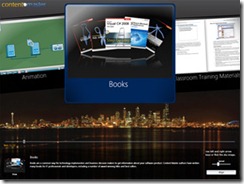
In this two-part blog series, I’ll show you the process that I went through in developing a Silverlight class library with Multi-touch gestures and events. This process was used in SharePoint Silverview to add Silverlight / Windows 7 touch functionality in a SharePoint environment. You can find the complete source code at http://code.msdn.microsoft.com/ssv.
1.2 Online Research
Jesse Bishop, Program Manager on the Microsoft Silverlight team, wrote an amazing article about Multi-touch Gesture recognition in Silverlight 3. The article illustrates on how to register touch events and process standard gestures on individual elements. The primary concept is to have a single entity that reads the incoming events and determine which element that is being accessed. After reading Jesse’s article, I got inspired to extend his concept with a variety of gestures and events that can be used in a standard Silverlight application.
1.3 Hardware
Before you can develop or run Silverlight application with Multi-touch, you need the right equipment. I have been developing on the Dell SX2210T and the HP TouchSmart IQ586. The HP TouchSmart TX2 is also a good choice. One interesting thing that I learned was the HP TouchSmart IQ586 only had support for a single touch point. There is an updated driver to ensure that the monitor utilizes two touch points. You can check for this by viewing the Pen and Touch information under System Information. It is ideal to have 2 Touch Points, if you plan to support two-finger gestures such as Scale and Rotate. With the recent release of Windows 7, there may be drivers for existing hardware that will need to be updated.
1.4 Touch 101
The Touch framework has two primary concept: the TouchPoint object and the FrameReported event.
The TouchPoint object stores data related to a single touch point. This data is passed from the hardware as the user interacts with the touch device. The number of touch points vary on the supported hardware. The first touch point that is fired to the application is called the primary touch point. The object has two important properties: Position and Action. The Action property stores the current action state, such as Up, Down, and Move. The Up and Down actions are similar to the mouse’s MouseLeftButtonUp and MouseLeftButonDown events. The Move action is the transition action that is constantly called until the user releases the Touch Point, which also invokes the Up action.
The FrameReported event is an application-wide event that sends data from the hardware to the application. One thing to note is that this event is global to the application rather than an individual element. The application doesn’t directly know the element that the event is processing. It is possible to retrieve this information using the VisualTreeHelper.GetPointsUnderCoordinates method. The TouchFrameEventArgs argument has methods of getting information about touch points. You can get the current touch points by calling the GetPrimaryTouchPoint and GetTouchPoint methods.
2. Basic Implementation
2.1 Creating the MultiTouch Class Library
Now, let’s start by creating a class library. The library will be useful for rapidly developing touch applications. We will only need two objects for the library: TouchElement control and TouchProcessor (explained in Jesse’s article).
In Visual Studio 2008 (or Visual Studio 2010 Beta 2), create a new Silverlight Application. Right-click on the Solution in the Solution Explorer and select Add New Project. In the Project Dialog box, select Silverlight Class Library and name it TouchLibrary. Remove the default Class1.cs file.
2.2 TouchElement
We will define the TouchElement control as a content control to allow you to place any element, such as an image, movie clip, or UIElement, into the control. This is not a requirement for deploying Touch applications, but rather a personal choice for development. One useful scenario is having a couple of TouchElement controls with images to allow users to drag and scale images around the user interface.
Right-click on the TouchLibrary and select Add New Item. In the Add New Item Dialog box, select User Control and name it TouchElement. Replace the TouchElement.xaml content with the following:
<ContentControl x:Class="TouchLibrary.TouchElement"
    xmlns="http://schemas.microsoft.com/winfx/2006/xaml/presentation"
    xmlns:x="http://schemas.microsoft.com/winfx/2006/xaml"
    RenderTransformOrigin="0.5,0.5"
    >
    <ContentControl.RenderTransform>
        <TransformGroup>
            <ScaleTransform x:Name="scale" />
            <TranslateTransform x:Name="translate" />
        </TransformGroup>
    </ContentControl.RenderTransform>
    <ContentControl.Template>
        <ControlTemplate>
            <ContentPresenter Margin="0" Content="{TemplateBinding Content}" ContentTemplate="{TemplateBinding ContentTemplate}">
            </ContentPresenter>
        </ControlTemplate>
    </ContentControl.Template>
</ContentControl>
Note that this is a Content Control rather than a UserControl. We have added TranslateTransform and ScaleTransform transforms to render the control’s transformation based on the touch events.
Now it’s time for some code action. In Jesse Bishop’s article, he implements the concept using ITouchElement as an interface that describes the supported gestures and ManipulateElement as a UserControl that implements the ITouchElement interface. I decided to merge the code from his elements into the TouchElement content control. I highly recommend checking out his article if you want to learn the details of the concept.
We will implement the Translate and Scale gestures. The Translate gesture occurs when the user drags the element from one position to another. The Scale gesture occurs when the user pinch and scales using two touch points. There may be scenarios when the developer wants to create their own custom translate and scale events. For this reason, we will add support for default transforms as well as add custom events that will send information back to the application.
The TransformEventArgs class stores basic data for both Translate and Scale events.
public class TransformEventArgs : EventArgs
{
    public TouchElement.TransformType Type { get; set; }
    public Point Translate { get; set; }
    public double Scale { get; set; }

    public TransformEventArgs(TouchElement.TransformType type, Point translate)
    {
        Type = type;
        Translate = translate;
        Scale = 1;
    }

    public TransformEventArgs(TouchElement.TransformType type, double scale)
    {
        Type = type;
        Scale = scale;
        Translate = new Point(0, 0);
    }
}
The TransformHandler delegate is used for both events, with the TransformEventArgs object as the second parameter.
public delegate void TransformHandler(object sender, TransformEventArgs e);
public event TransformHandler ScaleChanged;
public event TransformHandler TranslateChanged;
We will add three properties to the TouchElement class. The TouchEnabled property will be used in the TouchProcessor class to check which TouchElement objects need to be processed. The TouchDrag and TouchScale boolean properties enable the default touch behaviors for drag (translate) and scale events. By default, the properties are set to false to allow the user to create their own events.
public bool TouchEnabled
{
    get { return (bool)GetValue(TouchEnabledProperty); }
    set { SetValue(TouchEnabledProperty, value); }
}

public bool TouchDrag
{
    get { return (bool)GetValue(TouchDragProperty); }
    set
    {
        SetValue(TouchDragProperty, value);

        if (value)
            this.TranslateChanged += new TransformHandler(TouchElement_TranslateChanged);
        else
            this.TranslateChanged -= new TransformHandler(TouchElement_TranslateChanged);
    }
}

public bool TouchScale
{
    get { return (bool)GetValue(TouchScaleProperty); }
    set
    {
        SetValue(TouchScaleProperty, value);

        if (value)
            this.ScaleChanged += new TransformHandler(TouchElement_ScaleChanged);
        else
            this.ScaleChanged -= new TransformHandler(TouchElement_ScaleChanged);
    }
}

public static readonly DependencyProperty TouchEnabledProperty =
    DependencyProperty.Register("TouchEnabled", typeof(bool), typeof(TouchElement), new PropertyMetadata(true));

public static readonly DependencyProperty TouchDragProperty =
    DependencyProperty.Register("TouchDrag", typeof(bool), typeof(TouchElement), new PropertyMetadata(false));

public static readonly DependencyProperty TouchScaleProperty =
    DependencyProperty.Register("TouchScale", typeof(bool), typeof(TouchElement), new PropertyMetadata(false));
The TouchDrag and TouchScale properties connect the default event handlers, which validates the input value and directly updates TouchElement’s transform values.
void TouchElement_ScaleChanged(object sender, TransformEventArgs e)
{
    double scale = e.Scale;

    double s = this.scale.ScaleX + scale;
    double MIN_SCALE = 0.25;
    double MAX_SCALE = 5.0;

    if (s > MIN_SCALE && s < MAX_SCALE)
    {
        this.scale.ScaleX += scale;
        this.scale.ScaleY += scale;
    }
    else if (s < MIN_SCALE)
    {
        this.scale.ScaleX = MIN_SCALE;
        this.scale.ScaleY = MIN_SCALE;
    }
    else if (s > MAX_SCALE)
    {
        this.scale.ScaleX = MAX_SCALE;
        this.scale.ScaleY = MAX_SCALE;
    }
}

void TouchElement_TranslateChanged(object sender, TransformEventArgs e)
{
    this.translate.X += e.Translate.X;
    this.translate.Y += e.Translate.Y;
}
The TranslateElement and ScaleElement methods calculate the appropriate transforms from the positions based on the touch events. After the value is calculated, the event is fired with the TransformEventArgs as a parameter. This will process the default transformation as well as any custom work that is connected to the event.
private void TranslateElement(Point oldPosition, Point newPosition)
{
    double xDelta = newPosition.X - oldPosition.X;
    double yDelta = newPosition.Y - oldPosition.Y;

    if (yDelta != 0 || xDelta != 0)
        RaiseTranslate(new TransformEventArgs(TransformType.TRANSLATE, new Point(xDelta, yDelta)));
}

private void ScaleElement(Point primaryPosition, Point oldPosition, Point newPosition)
{
    double prevLength = GetDistance(primaryPosition, oldPosition);
    double newLength = GetDistance(primaryPosition, newPosition);

    if (prevLength == double.NaN || newLength == double.NaN)
        return;

    double scale = (newLength - prevLength) / newLength;

    if (scale != 0)
        RaiseScale(new TransformEventArgs(TransformType.SCALE, scale));
}
The TouchProcessor class calls the TouchPointReported method to process the touch event based on the TouchPoint’s Action property. On the Down action, we collect information on the TouchPoint. If it is the initial touch point, then the position is later used for distance calculation. In the next blog post, I will go into additional functionality that can be added in the TouchDown method, such as a start time for timing touch event for other gestures. On the Touch Up action, we free up the current point. The TouchUp method can also be used to process any gestures, which will be detailed in the next blog post. The Touch Move is where the fun’s at. After the Down action occurs, the Move action constantly runs until the Up action is called. If there is only a single touch point, the TranslateElement method is called. The ScaleElement method is called if there are multiple points. In Jesse’s article, he also has Rotate functionality, which is processed with multiple points.
public void TouchPointReported(TouchPoint touchPoint)
{
    switch (touchPoint.Action)
    {
        case TouchAction.Down:
            TouchDown(touchPoint.TouchDevice.Id, touchPoint);
            break;
        case TouchAction.Move:
            TouchMove(touchPoint.TouchDevice.Id, touchPoint);
            break;
        case TouchAction.Up:
            TouchUp(touchPoint.TouchDevice.Id, touchPoint);
            break;
    };
}

private void TouchDown(int id, TouchPoint touchPoint)
{
    _points.Add(id, touchPoint.Position);

    if (_points.Count == 1)
    {
        _startPoint = touchPoint.Position;
        _primaryId = id;
    }
}

private void TouchMove(int id, TouchPoint touchPoint)
{
    Point oldPoint = _points[id];
    Point newPoint = touchPoint.Position;

    if ((_points.Count == 1 || id == _primaryId))
        TranslateElement(oldPoint, newPoint);
    else
        ScaleElement(_points[_primaryId], oldPoint, newPoint);

    _points[id] = newPoint;
}

private void TouchUp(int id, TouchPoint touchPoint)
{
    Point oldPoint = _points[id];
    Point newPoint = touchPoint.Position;
    _points.Remove(id);
}
2.3 TouchProcessor
The TouchProcessor class manages the global touch functionality by connecting the Touch’s FrameReported event. Jesse goes into detail about the TouchProcessor class in his article. Add the following class to the Class Library. The primary difference in this version is the RootElement property, which is used to connect to the current application’s visual root. This property is required for the VisualTreeHelper.FindElementsInHostCoordinates method.
public class TouchProcessor
{
    #region Data Members
    private static Dictionary<int,TouchElement> touchControllers = new Dictionary<int, TouchElement>();
    private static bool _istouchEnabled = false;
    #endregion

    #region Properties
    public static UIElement RootElement
    {
        get;
        set;
    }

    public static bool IsTouchEnabled
    {
        get { return _istouchEnabled; }

        set
        {
            if (value && !_istouchEnabled)
                Touch.FrameReported += new TouchFrameEventHandler(Touch_FrameReported);
            else if (!value && _istouchEnabled)
            {
                Touch.FrameReported -= new TouchFrameEventHandler(Touch_FrameReported);
                touchControllers.Clear();
            }

            _istouchEnabled = value;
        }
    }
    #endregion

    #region Constructor
    public TouchProcessor()
    { }
    #endregion

    #region Events
    private static void Touch_FrameReported(object sender, TouchFrameEventArgs e)
    {
        TouchPointCollection touchPoints = e.GetTouchPoints(null);

        foreach (TouchPoint touchPoint in touchPoints)
        {
            int touchDeviceId = touchPoint.TouchDevice.Id;

            switch (touchPoint.Action)
            {
                case TouchAction.Down:
                    TouchElement hitElement = GetTouchElement(touchPoint.Position);

                    if (hitElement != null)
                    {
                        if (!touchControllers.ContainsKey(touchDeviceId))
                            touchControllers.Add(touchDeviceId, hitElement);

                        // Prevent touch events from being promoted to mouse events (only if it is over a TouchElement)
                        TouchPoint primaryTouchPoint = e.GetPrimaryTouchPoint(null);
                        if (primaryTouchPoint != null && primaryTouchPoint.Action == TouchAction.Down)
                            e.SuspendMousePromotionUntilTouchUp();

                        ProcessTouch(touchPoint);
                    }

                    break;
                case TouchAction.Move:
                    ProcessTouch(touchPoint);
                    break;
                case TouchAction.Up:
                    ProcessTouch(touchPoint);

                    touchControllers.Remove(touchDeviceId);
                    break;
            };
        }
    }
    #endregion

    #region Touch Process Events
    private static void ProcessTouch(TouchPoint touchPoint)
    {
        TouchElement controller;
        touchControllers.TryGetValue(touchPoint.TouchDevice.Id, out controller);

        if (controller != null)
            controller.TouchPointReported(touchPoint);
    }

    private static TouchElement GetTouchElement(Point position)
    {
        foreach (UIElement element in VisualTreeHelper.FindElementsInHostCoordinates(position, RootElement))
        {
            if (element is TouchElement)
                return (TouchElement)element;

            // immediately-hit element wasn't an TouchElement, so walk up the parent tree
            for (UIElement parent = VisualTreeHelper.GetParent(element) as UIElement; parent != null; parent = VisualTreeHelper.GetParent(parent) as UIElement)
            {
                if (parent is TouchElement)
                    return (TouchElement)parent;
            }
        }

        // no TouchElement found
        return null;
    }
    #endregion
}
3. Test the TouchLibrary
In the Silverlight Project, add TouchLibrary to the project’s References. This will allow you to add the custom touch functionality to your project.
In MainPage.xaml, add the following namespace to connect to the new library.
xmlns:touch="clr-namespace:TouchLibrary;assembly=TouchLibrary"
Add the following to MainPage.xaml to create three TouchElements (two with color rectangles and one with an image). The image source has the project name pre-pended to ensure that it loads the image from the correct project. The TouchDrag and TouchScale properties are enabled to allow you to manipulate the items.
<Grid Background="Black">
    <touch:TouchElement TouchDrag="True" TouchScale="True" HorizontalAlignment="Left">
        <Rectangle Fill="Red" Width="200" Height="200" />
    </touch:TouchElement>

    <touch:TouchElement TouchDrag="True" TouchScale="True" HorizontalAlignment="Right">
        <Rectangle Fill="Blue" Width="200" Height="200" />
    </touch:TouchElement>

    <touch:TouchElement TouchDrag="True" TouchScale="True" HorizontalAlignment="Center" VerticalAlignment="Bottom">
        <Image Source="/TouchApp;component/Rocks.jpg"  Width="200" Height="200" />
    </touch:TouchElement>
</Grid>
In MainPage.xaml.cs, add the following code to initialize the TouchProcessor object.
TouchProcessor.RootElement = this;
TouchProcessor.IsTouchEnabled = true;
One thing to note is that the Touch functionality doesn’t work in Windowless mode. By default, Windowless mode is set to false and it is a feature that should be used with caution. For more information on the limitations of Windowless mode, check out this article.
Compile and run the application. As mentioned before, you will need the required hardware to recognized the Touch events. You can drag the three items across the screen as well as scale them to different sizes. The item is also brought to the front of the screen after release the touch point.
The demo of this version can be found here.

4. Wrapping Up
Thanks for checking out this article. Stay tuned for my next blog post, where I introduce more customization for the TouchLibrary, including Gesture support, parented selection, and touch events in a ChildWindow.
http://www.silverlighttoys.com/Articles.aspx?Article=SilverlightMultiTouch


